
Step-by-step guide to the physician platform
The FirmTech Doctor Dashboard gives clinicians access to linked patients' TechRing data, from a patient list and summary statistics down to each recording, with Excel export.
- TechRing
FirmTech Doctor Dashboard
The Doctor Dashboard gives doctors and clinicians access to their patients’ data. This facilitates remote appointments or preparation for in-person appointments. Clinicians can see erectile and sexual function in near real time to help their patients get the data they are looking for.
Note: The app currently notifies users of improvements or declines in nocturnal erection parameters, which can prompt them to see their providers.
1. Set up the doctor’s account
The process is straightforward. Our partners (in this case, BliskoMed) manage the list of doctors and send the following information to Riley@myfirmtech.com:
- Title and name of the doctor the patient will see
- Email of the doctor, for registration
- Password for the doctor to access the dashboard
- Doctor’s code for patients (usually first_last name or the name of the clinic: something unique, but short enough that it is easy for the user to enter)
Once the account is created, the doctor logs in on the doctor’s dashboard website: myfirmtechdoctors.com.
2. Patients link to their doctor
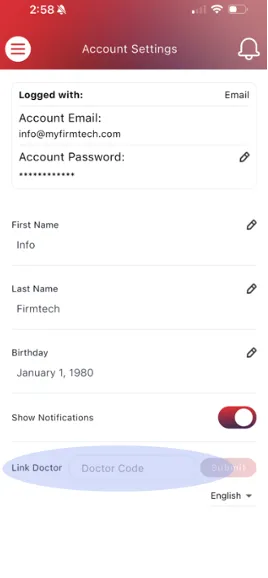
Patients enter their doctor’s code in the app, in the Account Settings tab at the bottom of the page, under Link Doctor.
3. The patient list
Once the doctor logs into the dashboard, they will see this screen:
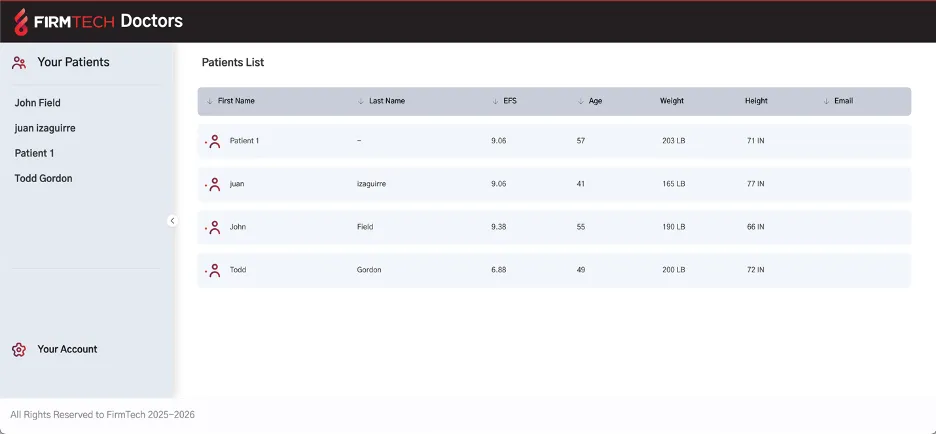
The left panel shows all the patients who have signed up with the doctor’s code. The right side is an overview of each individual on the roster. To see all the data for a single patient, the doctor clicks that person’s row and gets all the detailed recording information for the patient:
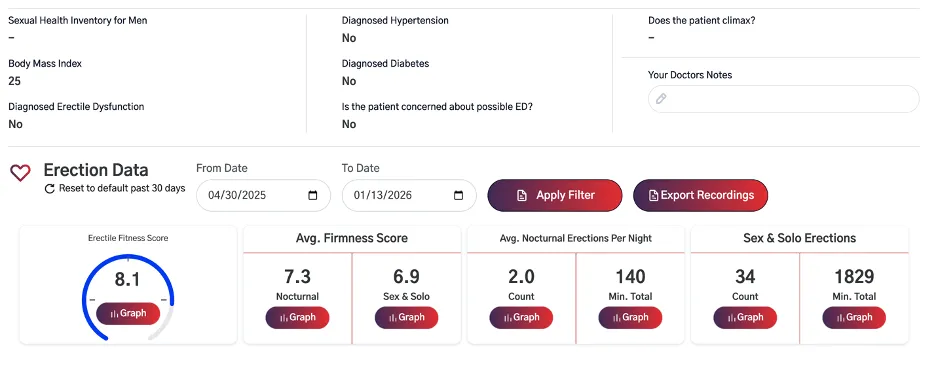
The top section shows the patient’s medical profile from the app. The bottom section shows the recording summary statistics for the time period selected with the From Date and To Date fields.
4. Individual recordings
The next screen shows all the individual recordings during the selected time period for the selected user:
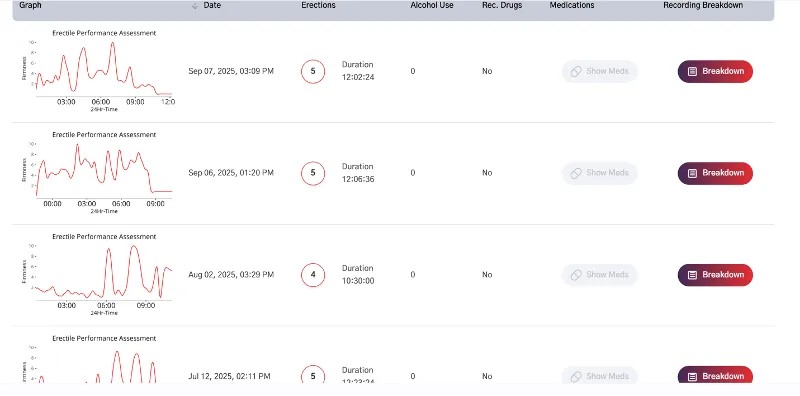
The doctor can see how many erections were detected during each recording, how long the recording lasted, whether the patient used alcohol or recreational drugs, and whether they took medications (shown when you click Show Meds; the button is grey if they did not take any).
5. Recording breakdown
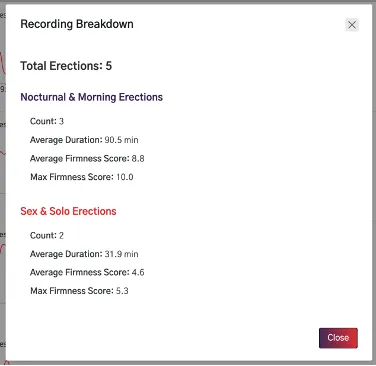
Clicking any of the rows opens the Recording Breakdown screen, which gives more detailed insight into the erections detected during the recording and how the user categorized them:
Exporting recordings
When selecting the dates for the summary statistics, the Export Recordings button (next to Apply Filter) downloads an Excel file of each recording during that time period. The Excel file breaks down the data for each recording even further.
Was this helpful?
Thanks for letting us know.
Sorry about that. Tell us what was missing and we will help. Contact us